What it does
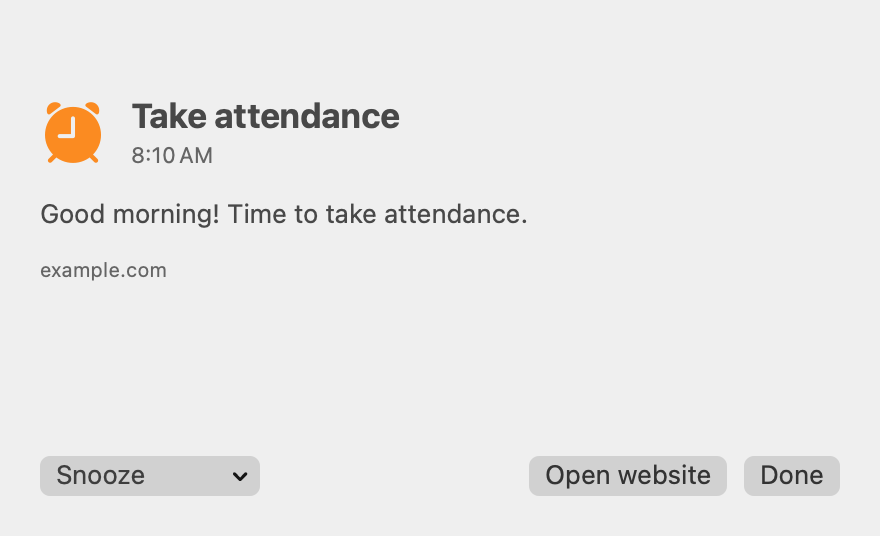
- Pops up on screen at the time and on the weekdays you set, above every other window.
- Sound or silence for each reminder, and an option to keep chiming until you dismiss it.
- Opens a website with one button, or automatically the moment it fires. Attendance, lunch count, the morning slides.
- Snooze for 5, 10 or 15 minutes when a child needs you first.
- Catches up if your laptop was asleep or closed. Open it within half an hour and the reminder still shows.
- Starts when you log in, on its own, so a restart never takes it down. There is a checkbox in its window if you ever want it not to.
Install it, about two minutes
- Download with the button above, then double-click the zip file in your Downloads folder. A Reminder Bell app appears next to it.
- Drag Reminder Bell into your Applications folder.
- Open it once from Applications. Because it did not come from the App Store, your Mac will say it could not verify it. Click Done. That is normal.
- Open System Settings, then Privacy & Security. Scroll to the bottom, and next to the note about Reminder Bell click Open Anyway, then Open. You only do this the first time.
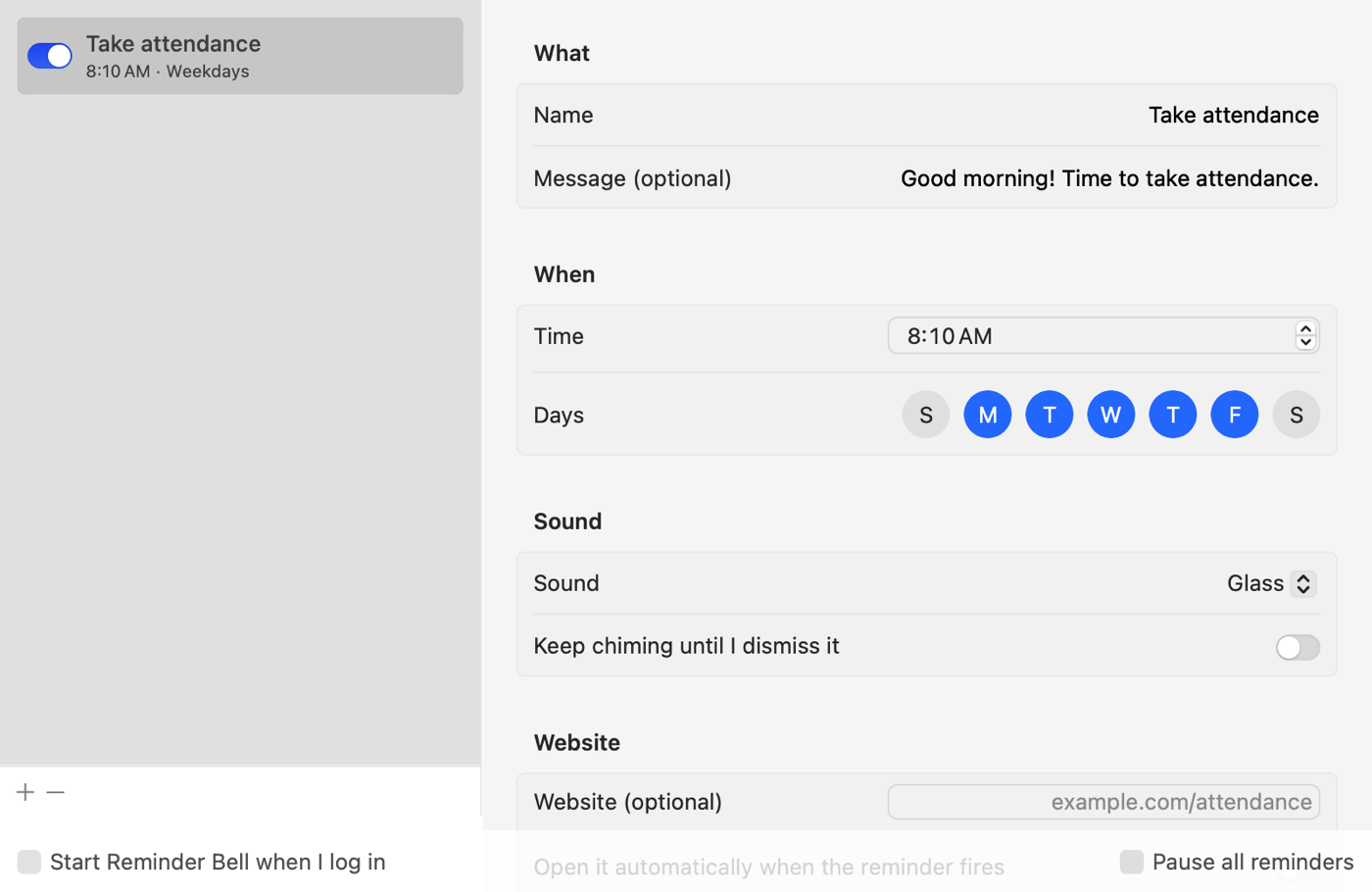
- Set it up. It opens with a Take attendance reminder already set for 8:10 on weekdays. Paste your attendance website into the Website field and press Test it now to see and hear it. It has already added itself to your login items, so it comes back on its own after a restart.
On a Mac running macOS 13 or 14, step 4 is simpler: right-click the app, choose Open, then Open again.
Good to know
- It lives in the menu bar, the strip at the top of your screen by the clock, as a small bell. It has no Dock icon.
- Closing the window does not quit it. The reminders keep working. To stop it completely, click the bell and choose Quit Reminder Bell.
- It keeps everything on your own Mac. It does not connect to the internet, and it never sees your class list.
- Share it. Send a colleague this page, or the zip itself. It is free.